UI/UX Designer
Project 3: Automated System
There are a lot of different air purifier systems, especially now that air quality is a major issue both with climate change and CoViD-19, and they each have their own app and/or physical interfaces. It would be nice to control them all from a single interface.
Group member: Kat Allen, Liheng Xu, Su Hnin Pwint

Motivation
We checked the existing linked air purifier applications on the market and found some areas for improvement.
The apps do not particularly highlight what the users are looking for such as pollen, allergens, smoke, pet hair, odors, and volatile organic compounds.
Some households have more than one air purifier from different brands in the house and do not want to download all the apps. The apps do not interface with local air quality information from government/crowdsourced systems for the town or state.
Users also encounter trouble with connectivity issues using wireless to understand the purification system in real-time.
There are many apps that do not present the percentages of the harmful factors in this atmosphere and do not estimate when replacement parts or maintenance will next be required.
Task Analysis
-
Identify data sources (different air purifiers, local government, or nonprofit-provided air quality data)
-
Automatic setup:
-
Identify control points for each air purifier (fan speed, modes of purification)
-
Identify information each air purifier can provide back to the system
-
Needs to know about different brands of air purifiers and their API (Application Program Interface)
-
Maybe some kind of user setup for custom air purifiers if theirs is not already included?
-
Note: Depending on what type of model and brand the user purchases the air purifier there might be slight differences in the design and menu.
Task 1: Connecting Air Purifier System to the Purifoy App
-
Purchases the Air Purifier
-
Opens the air purifier system
-
Inserts the HEPA filter inside the air purifier
-
Inserts the carbon filter inside the air purifier
-
Adds the pre-filter inside the air purifier
-
Close the cover of the air purifier
-
-
Assemble the air purifier in a desired location
-
Plugs the wire into the outlet
-
Turns on the air purification system
-
-
Download the mobile application for Purifo App in apple or google store
-
Name a location to associate with the new air purifier
-
Selects connect the device and associate it with the location
-
Read instructions of the connection guide manual
-
Add product type
-
Selecting product model
-
Connect your phone to a setup WiFi network to do the initial configuration for the air purifier
-
Press the Wifi button of the product one time to make Wifi off.
-
The Wi-fi LED of the product is off, press and hold the Wifi button for 3 seconds to 5 seconds until a beep sounds.
-
Check if the Wi-fi LED of the product keeps blinking
-
Connect the Purifo network from the Wi-fi setting of your phone
-
Go to Settings on your phone and choose Wifi
-
-
Go back to the Purifo App of your system
-
-
Purchases the Air Purifier
-
Opens the air purifier system
-
Inserts the HEPA filter inside the air purifier
-
Inserts the carbon filter inside the air purifier
-
Adds the pre-filter inside the air purifier
-
Close the cover of the air purifier
-
-
Assemble the air purifier in the desired location
-
Plugs the wire into the outlet
-
Turns on the air purification system
-
-
Download the mobile application for Purifo App in apple or google store
-
Name a location to associate with the new air purifier
-
Selects connect the device and associate it with the location
-
Read instructions of the connection guide manual
-
Add product type
-
Selecting product model
-
Connect your phone to a setup WiFi network to do the initial configuration for the air purifier
-
Press the Wifi button of the product one time to make Wifi off.
-
The Wi-fi LED of the product is off, press and hold the Wifi button for 3 seconds to 5 seconds until a beep sounds.
-
Check if the Wi-fi LED of the product keeps blinking
-
Connect the Purifo network from the Wi-fi setting of your phone
-
Go to Settings on your phone and choose Wifi
-
-
Go back to the Purifo App of your system
-
Task 2: Reviewing Air Quality Data from monitoring systems already set up
-
Open the OurProgramName App
-
Select a location where you have monitors set up.
-
Select the type of information you’d like to review:
-
Indoor
-
AQI ground-level ozone
-
AQI particle pollution (also known as particulate matter, including PM2.5 and PM10)
-
AQI carbon monoxide
-
AQI sulfur dioxide
-
AQI nitrogen dioxide
-
Temperature
-
-
Outdoor
-
AQI ground-level ozone
-
AQI particle pollution (also known as particulate matter, including PM2.5 and PM10)
-
AQI carbon monoxide
-
AQI sulfur dioxide
-
AQI nitrogen dioxide
-
Temperature
-
-
Control
-
Alerts to turn on/off the filter
-
Remind user to change the filter when needed
-
Filter percentage used/until cleaning required
-
Turn on or off ionizer
-
Air circulation control on low to high speed
-
Night Mode / Quiet Mode
-
Auto Mode
-
-
Device Settings
-
Schedule Time
-
Change Location/Unit
-
Share Data with friends
-
-
-
Information is presented combining data from all connected sensors
-
Users can select an AQI subset to see the data from each sensor
-
The back button on each screen takes the user back to the prior screen
-
The “Home” button takes the user back to the main screen (even if they have gone deeply into menus)
Task 3: Using (Alexa, Google, Siri) to control your air purifiers
-
Connect Siri to Air purifier
-
Use Voice control to turn on/off the air purifier
-
Use Voice Control to lower down the airspeed
-
Ask Alexa to lower down the speed, turn night mode on etc
Flow Chart
We created a flow chart that demonstrates a breakdown of the Air Purifier system.

User Interface Features
-
Setting up the Air Purifier - Liheng
-
Connect the device to the app
-
Wireless connectivity setup
-
When adding more than one air purifier
-
-
Home screen - Kat
-
AQI History thumbnail
-
Control Thumbnail (gear-shaped to take you to settings and scheduling)
-
Indoor/Outdoor air quality
-
Select a location thumbnails (colored by AQI in that location, showing AQI number, shaped by what kind of location - house, factory, etc)
-
-
Main Screen for a Location - Su
-
Indoor quality/temperature
-
Outdoor quality/temperature
-
Data sources (specific purifiers and their status)
-
Explanation about the air quality
-
-
Data source configuration/details page (Future Implementation) - Su
-
AQI data by type
-
Brand of the system and what information it provides(just AQI, just filtering, just temperature, etc)
-
Control settings for that data source (if it’s one you are authorized to control)
-
-
Settings - Liheng
-
Turning on the alert system to change the air filter
-
Check the history of each filter
-
-
Scheduling - Kat
-
Time and Date to schedule when to turn off the air purification system
-
Low to the high fan settings mode
-
Night mode setting
-
User Interface and Experience Design
Initial Research
Before we jumped into designing any interfaces we decided to do some research on competitors' existing solutions and educate ourselves with the subject matter..
Through competitive research from Winx, Dyson, and other smart air purifiers we were able to determine different strengths and weaknesses.
For example:
-
The analogy of home illustration in the Dyson app
-
Includes indoor/outdoor temperature
-
Night mode/fan mode with schedule timer
-
Location of the air purifier
-
History of multiple filters in one chart
-
Education on air quality
-
In-Depth Information on the temperature of the outdoor and air quality
We also looked into how current air quality is being determined and how they are being labeled and associated with the color indication.
For instance:
Below is an image of the research that we did.


Initial Sketch
We wanted to provide the users:
-
Indoor/Outdoor Temperature
-
AQI
-
Air Quality
-
Indication of good air quality displaying emotive
-
Ability to add additional air purifier

Design Decisions
The design decisions behind the app are focused on the user experience of being able to add different air purifier devices with convenience and being able to understand the different air quality and breakdown. Initially, users were missing the ability to see a breakdown of their allergens, pollen, and air quality.
Emotions are used throughout the application to engage the user interaction. Different emotions ranging from happy to sad indicate the average home air quality.
In the future, we would like to have illustrations that could create an environment for the users to be even be able to engage with the air purifier feeling welcome in their homes.
Naive User Walkthrough
Our application will help users control the air purifier directly from their mobile phones. No matter where you are, you can control your air quality from mobile devices. This app supports controlling your machine directly from your equipment and monitors indoor and outdoor air quality.
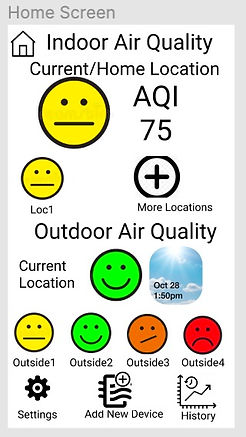
From the Home Screen, users can see an emotive display of the air quality at their current location (or the Home Location if they do not have location services enabled for the app or if their location can not be determined), as well as sensor integrated summary data for other locations. (Sensor integrated means that if there is more than one air filter or sensor at a location, the display on the Home screen will show a weighted average of the sensors based on data quality.)
On the bottom of the home screen are outdoor air quality and temperature data, for the current (or home) location, and for other locations which have been added for monitoring.
On the bottom of the Home Screen, users can access App Settings, Add a New Device, or access filter history.
If the user clicks on the Settings icon, that opens the Settings page:
On the Settings Page, users can see that the application has wireless connection settings and supports multiple linking devices. Users can set up a new device (also available directly from the Home Screen), configure notifications about air filter maintenance, or access filter history for all the configured devices.
If the user clicks on “Set Up”, they go to the Set-Up page, where they can connect to a new air filter via wireless or Bluetooth. The app will link to the manufacturer’s instructions for physical setup and can suggest to the user compatible devices that they could purchase if they do not already have an air filter to set up.
If the user clicks on “Manage Devices”, they can disable air filter management and set recent devices.
If the user clicks on “Filter Alert”, they will go to the “Filter” page, where they can configure notifications to occur when the air purifier’s filter is at a certain percentage used, (so that they can order a new filter) or when other maintenance needs to be performed. The application will notify the user when the filter needs to be replaced, so you can ensure that the purification fan is always at its best.
If the user clicks on “History” from the Settings page, they go to the History page, with air filter usage and AQI history data. (This page is also accessible via the “History” shortcut on the Home Page).
If the user clicks on “Schedule” from the Settings page, our application allows users to set the air purifier to keep it on and off when needed.
The main schedule page shows favorite locations with the filters configured in each, and then shows the other locations. If a location is selected, it will take the user to a Location Setup page (not shown), which lists all the configured filters or air quality sensors for that location.
If the user selects an air filter (from the main schedule page or the Location Setup pages) it will take them to the Air Filter Scheduling page (or an AQI sensor page, not shown, if the item selected is a sensor only).
From the Air Filter Scheduling page, the user can set what times they want the unit to run and turn off.
Users can also set the night mode to use low-frequency airflow purification while sleeping.
Going Back to the Home Screen, the user can also monitor AQI data:
Clicking on any of the AQI emotive display icons will take the user to that location’s information page. Clicking on the Weather icon for the current outdoor location takes you to that location’s outdoor weather page:



Weather
The Weather page displays current detailed weather and outdoor AQI data for a location. You can also access this information from the weather icon on the Location page.
Location
The Current Location page has a dropdown menu for selecting an air filter, and the current AQI data for that filter is displayed below the dropdown menu. Below the air filter data is the current indoor and outdoor temperatures, and the forecast (outdoor) AQI for the location. On the menubar are shortcuts to AQI History (the same page accessible from the Settings page) and a shortcut to the Settings page, where this location’s devices will be displayed first in the device list (so a user does not have to remember or search extensively for the right device).
Air Purifier Breakdown
If the user clicks on the air purifier icon, it will bring them to the Air Purifier Breakdown page, where they can see more detailed AQI data (broken down into various components of AQI, like pollen, smoke/particulates, ozone, etc.)
Extensions
https://localhaze.humanlogic.com/faq/ provides air quality sensor “confidence” data (outdoor only, for public and crowdsourced AQI sensors), based mostly on update recency and an evaluation of sensor maintenance. In an expansion (outside the scope of this project) we could use this model to improve the user experience by helping them prioritize high-quality AQI data.